

Step 1: Understand how the pieces fit together
Before building anything, here’s how Metronome’s core objects connect: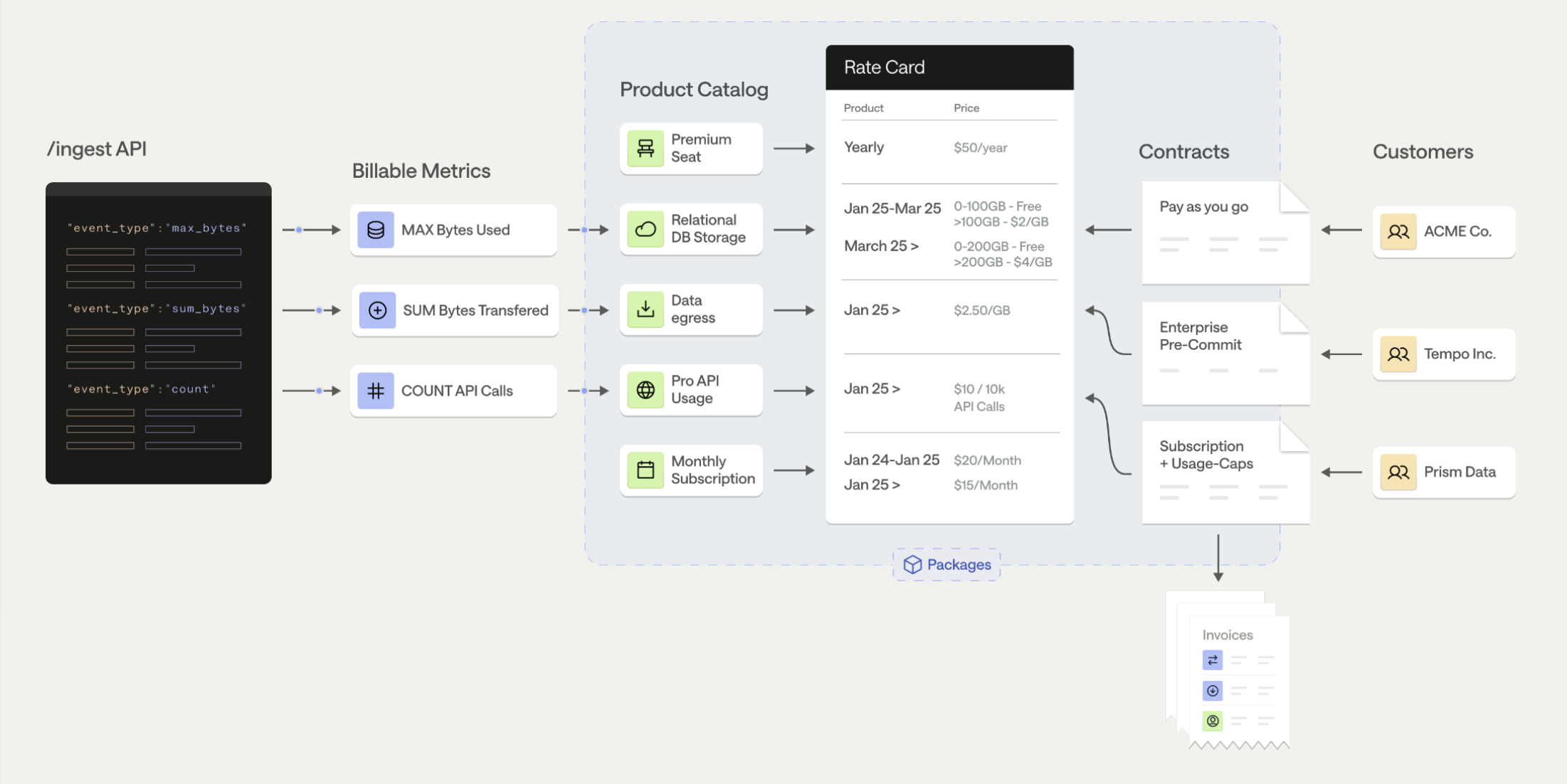
- Usage Events — Raw records of customer activity sent to Metronome (e.g., “customer X used 1,500 input tokens on model gpt-5 at timestamp Z”)
- Billable Metrics — Rules that aggregate your events into billable quantities (e.g., “sum the
input_tokensproperty for events of typellm_request”). This is also where you define group keys — the properties you’ll use to price by or display on invoices. - Products — Named line items on an invoice.
- Rate Cards — A centralized price book assigning a price to each product. A single rate card can be shared across many customers, making pricing updates easy to roll out.
- Contracts — Customer-specific agreements referencing a rate card, defining the billing period, and optionally including credits, commits, or overrides.
- Packages — Encodes your rate card and contract details in a single package to be applied across new customers.
- Invoices — Automatically generated each billing period based on a customer’s recurring charges and usage, rated against the contract.
- A billable metric
- A product
- A rate card with rates for each product
- A customer
- A contract linking the customer to the rate card
Step 2: Know what you’re measuring — event schema overview
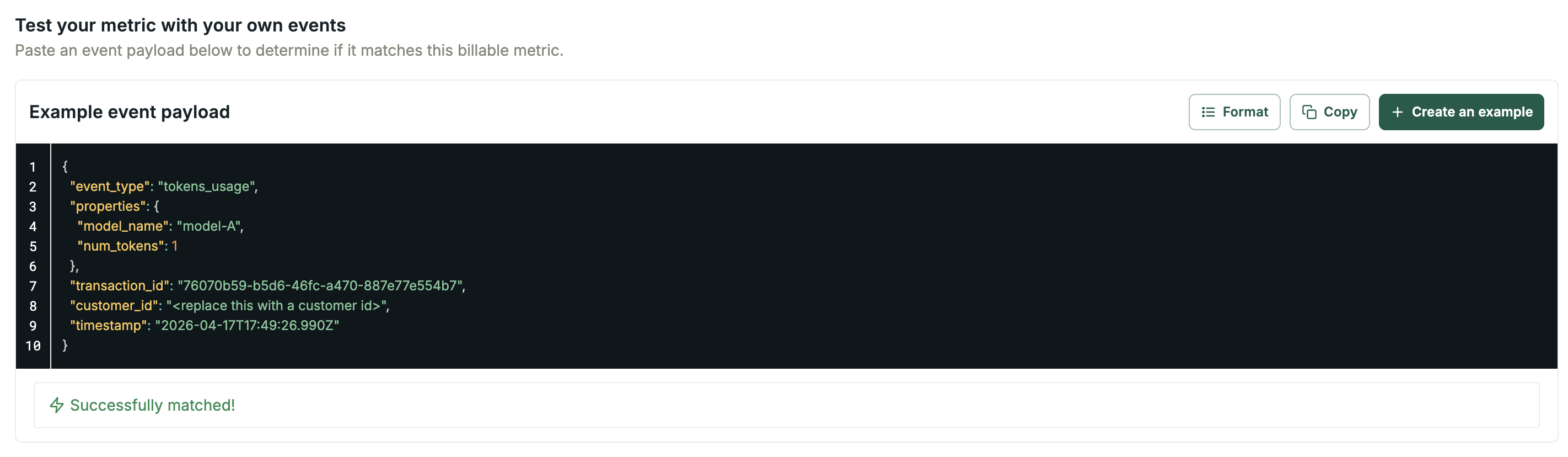
Before creating a billable metric, understand what your usage events will look like. See “Design Usage Events” for full event schema details and payload examples. Every event includes these required fields:transaction_id— Must be unique per event (used for deduplication)customer_id— The Metronome customer UUID or an ingest aliasevent_type— A string that connects the event to a billable metric (must exactly match)timestamp— When the usage occurred
properties— Key-value pairs containing quantities to meter (e.g.,tokens_usage), dimensions to price by (e.g.,model_name,region), and metadata for invoice display or analytics (e.g.,user_id,project_id,cost). Metronome supports up to 2,000 properties per event.
Step 3: Create a billable metric
A billable metric defines what to measure. Navigate to Offering → Billable Metrics → + Add. There are two billable metric types:- Streaming Metric — Covers most use-cases. Optimized for performance with real-time aggregation as events arrive.
- SQL Metric — For complex calculations like daily averages, unique counts per period, or weighted formulas. Learn more about SQL BMs →
- Name your metric (e.g., “Input Tokens”).
- Set the event type filter — this must exactly match the
event_typeyour application sends (e.g.,tokens_usage). - Define properties. Include the property to use as the aggregation key (the property to aggregate, e.g.,
num_tokens).
- Choose your aggregation type:
- Select the group keys.
Understanding group keys
Group keys determine what you can price by and display on invoices downstream. Think of them like aGROUP BY clause in SQL — they break your aggregated usage into buckets.
What group keys enable (on the Product, in the next step):
IMPORTANT: You must define group keys here on the billable metric first. They cannot be added later, and they must exist here before they can be assigned as pricing or presentation keys on a product.
Common group key examples:
model_name— per-model pricing (pricing group key)region— per-region pricing (pricing group key)instance_type— per-GPU/instance pricing (pricing group key)user_id— per-user invoice breakdowns, or seat-based billing using the Unique aggregation (presentation group key)project_id— per-project invoice breakdowns (presentation group key)
- Define your group keys based on the guidance above.
- Review the event in the Example event payload box to validate your filters.
- Click Save.
Navigate to Offering → Billable Metrics. Your new metric should appear in the list. Click into it to verify the aggregation, filters, and group keys are correct.
Step 4: Create a product
A product is a named line item that appears on your customer’s invoice. Navigate to Offering → Products → + Add new product.- Enter a Name — this is what appears on the invoice (e.g., “Input Tokens”).
- Select Product Type:
- Usage — Variably priced based on customer usage (requires a billable metric)
- Subscription — Recurring fee on a schedule (platform fees, seat licenses)
- Composite — Percentage charge on a group of other products
- Fixed — One-time or scheduled charges (used for commits, credits, one-time fees)
- Commits vs Credits: Commits have a cost-basis, while credits are always free
- For usage products, select the billable metric you created in Step 3. You can swap out the billable metric on a usage product if necessary.
- Assign group keys on the product:
You can use both pricing and presentation group keys on the same product (e.g., price by
model_name, display by user_id). Group keys here must be a subset of the group keys on the underlying billable metric.
(Optional Conversions) Add a quantity conversion — e.g., send individual tokens but display and price per million tokens on the invoice. Add a rounding conversion — e.g., send seconds but round and display to the nearest minute on the invoice.
Navigate to Offering → Products. Click into your product to verify the billable metric and group keys.
Step 5: Create a rate card
A rate card is a centralized pricing table that assigns prices to your products. Rate cards are in a single fiat currency. Navigate to Offering → Rate Cards → + Add new rate card. Best practice: Use a single rate card as your source of truth for standard pricing. When you update rates here, changes propagate to all contracts that reference this rate card. You can override rates per-customer on individual contracts.- Name your rate card (e.g., “Standard Rate Card”).
- Add products and set their rates.
- If using dimensional pricing (pricing group keys on the product), define values for each dimension and set a rate per value. For example, if
model_nameis your pricing group key, add entries formodel-Aat $1.50 andmodel-Bat $0.30.
- Tiered pricing — Set volume-based tiers on any product. On the rate card, click into the product → Add Tiers. For example, first 1M tokens at $1.00, next 1M at $0.80.
- Custom Pricing Units (Credit Conversions) — If you bill in credits or a custom unit rather than USD, first create a Custom Pricing Unit under Offering → Pricing Units, then configure the conversion on the rate card. Learn more →
- Commit rates — Set rates that apply specifically when usage draws down from a commit.
- Changing and Adding Rates — Edit the rate to change the rate and select the start date of the new rate. Add new rates by clicking “Add a Rate” on the rate card.
Step 6: Create a customer and contract
Now tie everything together.Create a customer
Navigate to Customers → + Add customer. Enter the customer Name. (Optional) Add ingest aliases so your engineering team can send events using your internal customer ID instead of Metronome’s UUID.Create a contract
Navigate to your new customer → + Add contract.- Select your rate card.
- Set the contract start date and end date.
- (Optional) Billing Provider — Connect an invoice integration to send finalized invoices to a payment system. For details, see:
- (Optional) Include contract specific terms. Contracts can include customer-specific terms, such as prepaid commits and overrides. See the following links for more information on setting this up.
Navigate to Customers → [Your Customer] → Contract. You should see the contract with your rate card assigned.
Send test events (sandbox only)
Now that you have a customer and contract, you can send test events directly from the UI. Navigate to the customer’s contract view and click on the product on the rate card. You’ll find the option to send test events here.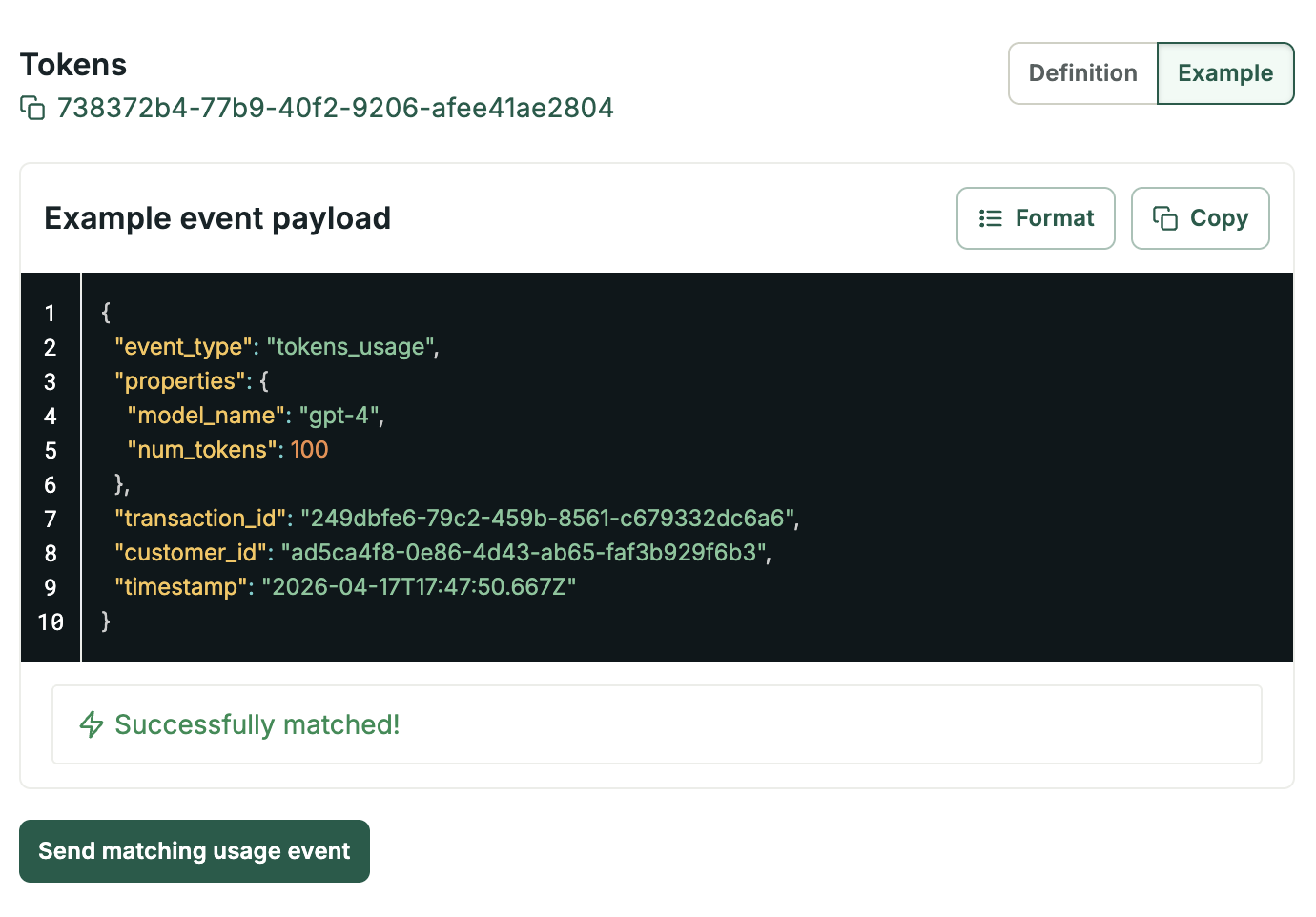
- The transaction_id must be unique for each event
- The timestamp must be within the last 34 days
- The event_type and properties must match your billable metric’s configuration (filters and group keys)
Step 7: Verify your invoice
Metronome automatically generates invoices based on the billing schedule on the contract. To see a draft invoice: Navigate to Customers → Contract → Invoices. The current billing period’s draft invoice should show your usage and calculated charges. Invoice lifecycle:- Draft — Accumulates usage throughout the billing period (viewable in Metronome).
- Finalized — Locked at the end of the billing period. There is a 24 hour grace period at the end of the billing period before invoices are finalized to make any necessary changes to an invoice.
- Sent to billing provider — If connected (e.g., Stripe), invoices are pushed within ~1 hour of finalization. Payment status is managed in your billing provider’s dashboard, not in Metronome.
- Paid / Failed — Collection handled by your billing provider. You can set up webhooks to listen to payment statuses for payment-gated commits.
Verify the draft invoice shows correct usage quantities and charges based on your event ingestion and rate card pricing. If you see usage (under Events) but no charges on the invoice, check that your events are matching the pricing group key values on your rate card.
Ready for more?
You’ve created your first invoice in Metronome! Here are additional features to explore:- Embeddable Customer Dashboards — Give your customers self-serve visibility into usage and spend
- Webhooks — Get notified about invoice lifecycle events, balance thresholds, and payment outcomes
- Alerts & Notifications — Spend alerts, balance thresholds, usage milestones
- Credits & Commits — Prepaid balances, enterprise commitments, free tier credits
- Revenue Recognition — ASC 606 / IFRS 15 compliance
- Production Checklist — When you’re ready to go live