

Prerequisites
- A Metronome sandbox account (sign up here)
- Your Metronome sandbox API token (Developer → API tokens in the dashboard)
Environments & authentication
The environment is determined entirely by your API token. A sandbox token only works with sandbox data; a production token only works with production data. All requests require a Bearer token.Step 1: Understand how the pieces fit together
Before building anything, here’s how Metronome’s core objects connect: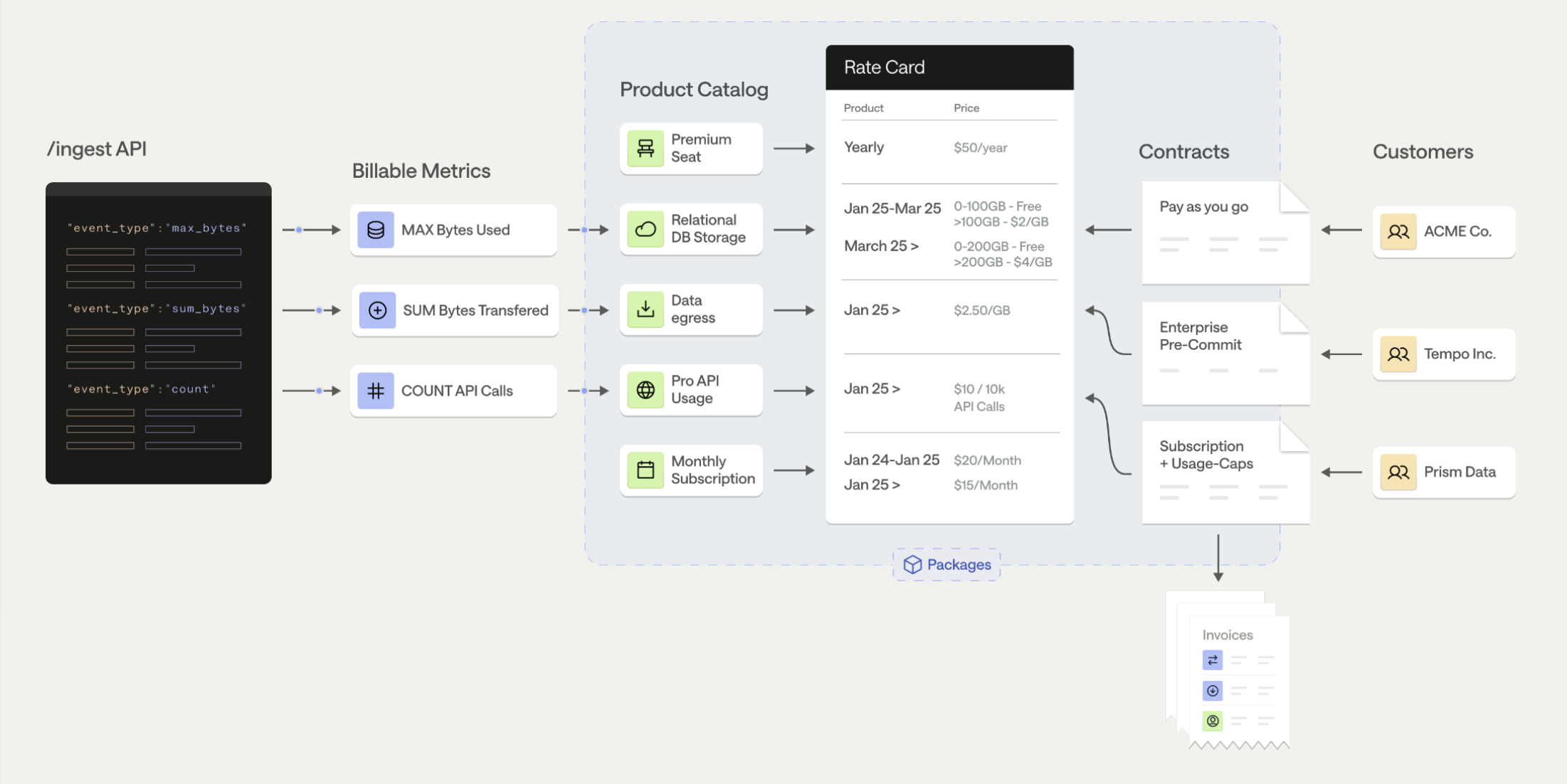
- Usage Events — Raw records of customer activity sent to Metronome (e.g., “customer X used 1,500 input tokens on model gpt-5 at timestamp Z”)
- Billable Metrics — Rules that aggregate your events into billable quantities (e.g., “sum the
input_tokensproperty for events of typellm_request”). This is also where you define group keys — the properties you’ll use to price by or display on invoices. - Products — Named line items on an invoice.
- Rate Cards — A centralized price book assigning a price to each product. A single rate card can be shared across many customers, making pricing updates easy to roll out.
- Contracts — Customer-specific agreements referencing a rate card, defining the billing period, and optionally including credits, commits, or overrides.
- Packages — Encodes your rate card and contract details in a single package to be applied across new customers.
- Invoices — Automatically generated each billing period based on a customer’s recurring charges and usage, rated against the contract.
- A billable metric
- A product
- A rate card with rates for each product
- A customer
- A contract linking the customer to the rate card
Step 2: Design your event schema
Before creating anything, decide what your usage events look like. Every event sent to Metronome has this structure:Required fields
transaction_id— Unique per event for idempotency. If the sametransaction_idis sent twice, Metronome deduplicates. Tip: combine timestamp + request ID.customer_id— Metronome customer UUID, or aningest_aliasconfigured on the customer (so you can use your own internal ID).event_type— String connecting this event to a billable metric. Must exactly match the billable metric’sevent_type_filterin_values.timestamp— ISO 8601 format. Must be within the last 34 days (Metronome’s backdating window). Future-dated events are rejected.
Properties (metric-dependent)
properties— Key-value pairs. All values should be strings (even numbers) — Metronome uses arbitrary-precision decimals internally to avoid floating point issues. Metronome also supports up to 2,000 properties per event.
- Aggregation — The value you sum, count, or max (e.g.,
input_tokens,duration_seconds) - Group keys — Dimensions for pricing (e.g.,
model,region) or invoice display (e.g.,user_id,project_id). Must be defined on the billable metric first. - Metadata — Context for customers, COGS analysis, or future-proofing (e.g.,
provider,cost,endpoint)
Common event patterns
For more patterns, see Event Design Patterns.
Step 3: Create a billable metric
API Reference: Create a Billable MetricExample — Count API calls (simple):
Example — Sum tokens with group keys:
Aggregation types
count | sum | unique | max | latest
count— Number of matching events (API calls, requests)sum— Sum of a numeric property (tokens, bytes, seconds)max— Maximum value in a window (peak storage, concurrent connections)
Group keys
Group keys determine what you price by and display on invoices. They work likeGROUP BY in SQL. Define them here — they can’t be added later.
For streaming BMs, properties used as group keys must appear in property_filters with "exists": true.
SQL billable metrics
For complex calculations (daily averages, percentile-based billing, weighted formulas), use SQL billable metrics. Any column returned by your SQL query besidesvalue can be used as a group key. Learn more →
Example — unique users per region:
region is returned as a column and can be used as a pricing group key on the product.
Step 4: Create a product
API Reference: Create a ProductExample — Usage product with group keys:
Product types
usage— Variably priced based on customer usage (requires a billable metric)subscription— Recurring fee on a schedule (platform fees, seat licenses)composite— Percentage charge on a usage productfixed— One-time or scheduled charges (commits, credits, one-time fees)
Group key assignment
Group keys on the product must be a subset of group keys on the underlying billable metric.
(Optional Conversions) Add a quantity conversion — e.g., send individual tokens but display and price per million tokens on the invoice. Add a rounding conversion — e.g., send seconds but round and display to the nearest minute on the invoice.
Step 5: Create a rate card
API Reference: Create a Rate Card Best practice: Use a centralized rate card shared across customers. Rate updates propagate to all referencing contracts.Create the rate card:
Add Rates:
Add dimensional pricing (one entry per value):
pricing_group_values for each dimension value (e.g., gpt-5-mini at $0.30).
Additional capabilities
- Tiered pricing — Volume-based tiers via the
tiersfield on a rate entry - Custom Pricing Units — Create under Offering → Pricing Units in the UI, then reference the
credit_type_idon the rate card for credit-based billing. Learn more → - Commit rates — Rates that apply specifically to prepaid commit drawdown
Step 6: Create a customer and contract
Create a customer:
API Reference: Create a Customeringest_aliases field lets you send events keyed on your own internal customer identifier instead of Metronome’s UUID. You can map sub-organizations to a single customer using multiple aliases.
Create a contract:
API Reference: Create a Contractbilling_provider_configuration:
Step 7: Send your first events
API Reference: Ingest Events Batch up to 100 events per request. Metronome supports approximately 6.6 million events per minute with batching.Important behaviors
- A
200response means events were accepted for ingestion. Check the response body for per-event errors. - Note that if there’s no matching BM for the
event_typeor required properties are not included, events are stored but may not appear in usage calculations. Be sure to create billable metrics before sending events if they are needed for rating. - Events can be backdated up to 34 days. Events with future timestamps are rejected.
transaction_idis used for deduplication. Sending the same ID twice won’t double-bill.- Only ingest endpoint events are metered. API calls for managing customers, contracts, etc. are not billable.
Verify your events
Navigate to Events in the dashboard. Search bytransaction_id. Click into an individual event to see if it matched a billable metric and customer — this is the fastest diagnostic.
Refresh the page if events don’t appear immediately. The aggregate “Total event count” may lag.
Troubleshooting
- Click into the event on the Events page — verify it matched a BM and customer.
- Check the API response from your ingest call for per-event errors.
- If events match a BM + customer but don’t appear on the invoice: The pricing group key values in the event likely don’t match any rate on the rate card. For example,
"model": "gpt-5"vs"model": "gpt5"(missing hyphen) will silently fail to rate. - Verify your API token is for sandbox (not production, or vice versa).
Step 8: Verify your invoice
Navigate to Customers → [Your Customer] → Invoices in the dashboard. The draft invoice should show your usage and charges. Invoice lifecycle:- Draft — Accumulates usage throughout the billing period (viewable in Metronome)
- Finalized — Locked at end of billing period. There is a 24 hour grace period at the end of the billing period before invoices are finalized to make any necessary changes to an invoice.
- Sent to billing provider — If Stripe is connected, pushed within ~1 hour of finalization. Payment status managed in Stripe’s dashboard.
- Paid / Failed — Collection handled by your billing provider
Verify the draft invoice shows correct usage quantities and charges based on your event ingestion and rate card pricing. If you see usage (under Events) but no charges on the invoice, check that your events are matching the pricing group key values on your rate card.
Ready for more?
- Embeddable Customer Dashboards — Self-serve usage visibility for your customers
- Webhooks — Invoice lifecycle, balance alerts, payment events
- Alerts & Notifications — Spend thresholds, balance notifications
- Credits & Commits — Prepaid balances, enterprise commitments
- Stripe Integration — Automated payment collection
- Revenue Recognition — ASC 606 / IFRS 15
- Production Checklist — When you’re ready to go live (new API token, same base URL, live Stripe keys)