> ## Documentation Index
> Fetch the complete documentation index at: https://docs.metronome.com/llms.txt
> Use this file to discover all available pages before exploring further.
# Send usage events from Segment
Set up and ingest events into Metronome with [Segment](https://segment.com/).
## Initial setup
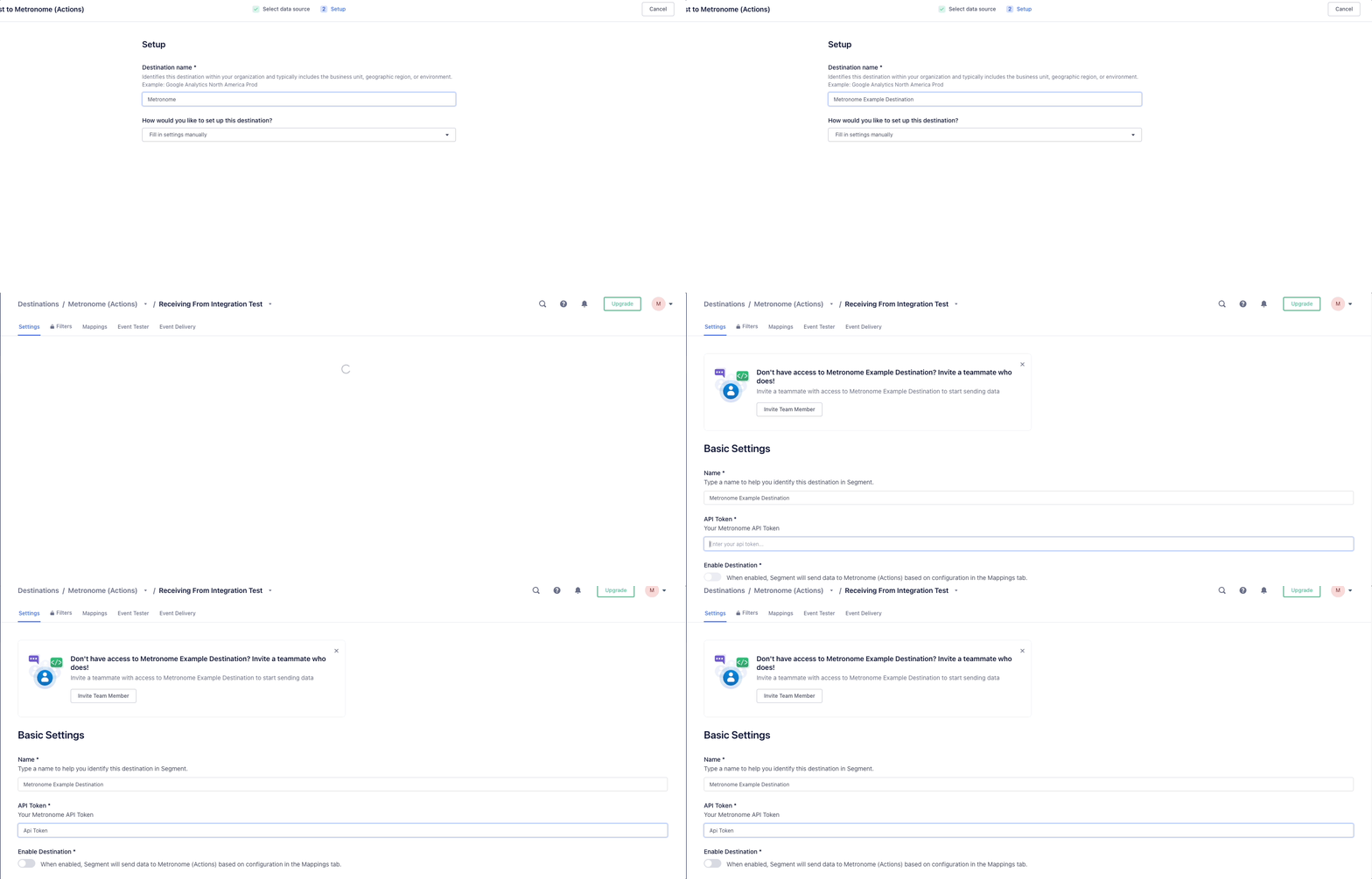
1. From the **Segment Destinations** page, click **Add Destination**. Search for and select **Metronome (Actions)** within the **Destinations Catalog**.
2. Click on **Configure Metronome (Actions)** , select the source you'd like to connect to, and give the destination a name (for example, *Metronome Instance #1*).
3. Enter your Metronome API token on the **Settings** pane in the **API Token** box and save the changes.
 ## Data field mapping
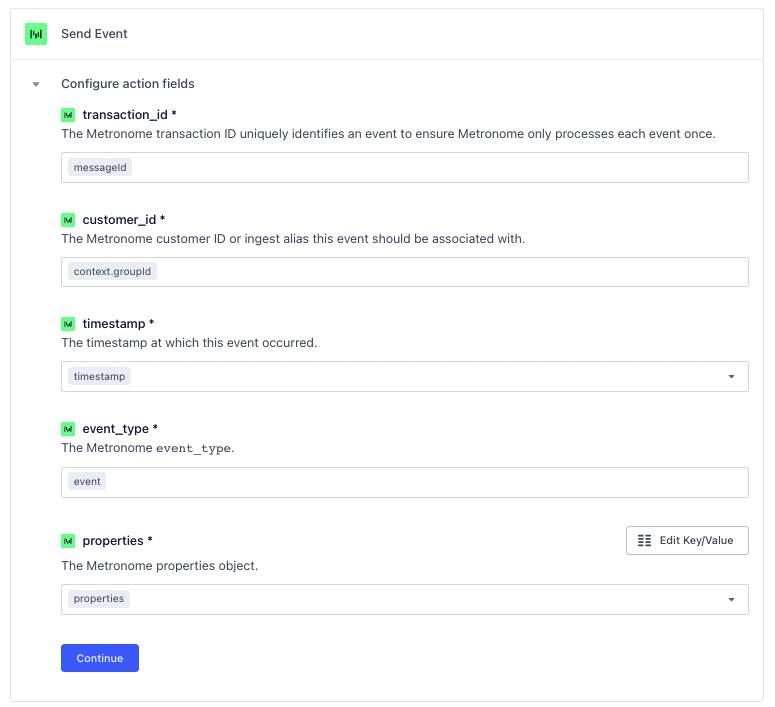
Map your Segment events to the Metronome usage event format. The five fields listed are the required fields for Metronome. To start, click the **Mappings** tab at the top of the **Settings** pane. You have a set of mappings by default. To add to or change them, choose **Edit Mapping** from the ellipsis dropdown.
**ALL MAPPINGS ARE REQUIRED**
You must specify a mapping even if the property name doesn't differ between the Segment event and the Metronome payload.
The required fields for Metronome are:
* `transaction_id` (string) - unique identifier for each event
* `customer_id` (string) - which customer in Metronome the event applies to
* `timestamp` (string) - when the event happened, in [RFC 3339](https://www.ietf.org/rfc/rfc3339.txt) format
* `event_type` (string) - the kind of event, for example `page_view` or `cpu_used`
* `properties` (object) - key/value pairs with details of the event
## Data field mapping
Map your Segment events to the Metronome usage event format. The five fields listed are the required fields for Metronome. To start, click the **Mappings** tab at the top of the **Settings** pane. You have a set of mappings by default. To add to or change them, choose **Edit Mapping** from the ellipsis dropdown.
**ALL MAPPINGS ARE REQUIRED**
You must specify a mapping even if the property name doesn't differ between the Segment event and the Metronome payload.
The required fields for Metronome are:
* `transaction_id` (string) - unique identifier for each event
* `customer_id` (string) - which customer in Metronome the event applies to
* `timestamp` (string) - when the event happened, in [RFC 3339](https://www.ietf.org/rfc/rfc3339.txt) format
* `event_type` (string) - the kind of event, for example `page_view` or `cpu_used`
* `properties` (object) - key/value pairs with details of the event
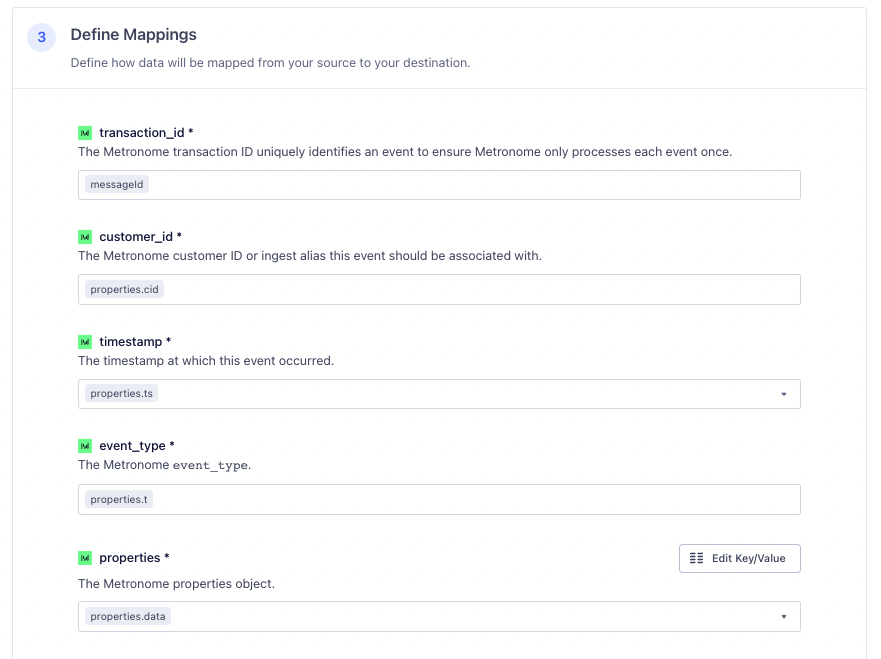
 If your `track` call looks like:
```javascript theme={null}
analytics.track('billing_event', {
cid: '533c3db43f22',
data: {
action: 'runJob',
jobId: 'fd82-aa0f-45a7-a756',
username: 'jsmith'
},
t: 'user_action',
ts: new Date('2020-04-02T00:10:25.000Z')
});
```
then your field mapping should be:
If your `track` call looks like:
```javascript theme={null}
analytics.track('billing_event', {
cid: '533c3db43f22',
data: {
action: 'runJob',
jobId: 'fd82-aa0f-45a7-a756',
username: 'jsmith'
},
t: 'user_action',
ts: new Date('2020-04-02T00:10:25.000Z')
});
```
then your field mapping should be:
 **TRANSACTION ID REQUIRED**
Metronome usage events require the `transaction_id` field to ensure all events are processed exactly once. The default mapping uses the [Segment `messageId` field](https://segment.com/docs/guides/duplicate-data/) as the Metronome `transaction_id`. This is probably ideal for most users, but if you want to control the Metronome `transaction_id` manually, you can provide a mapping to any field in the Segment event.
## Additional Destination Actions
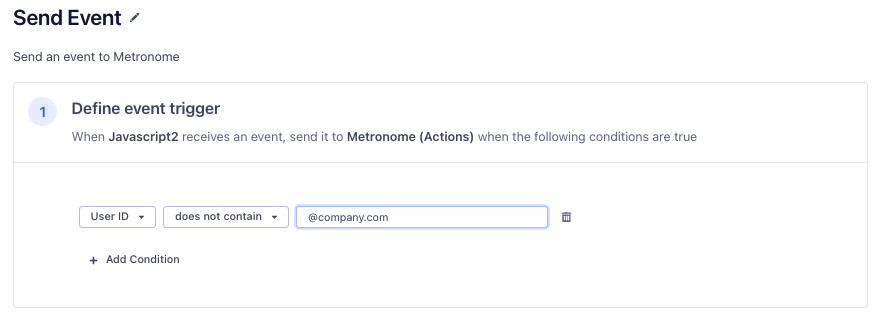
The integration supports [Destination Actions](https://segment.com/docs/connections/destinations/#destination-actions), allowing users to create *subscriptions*. This means that the Metronome (Actions) destination sends data to Metronome based on a set of conditions known as *triggers*. Create additional triggers and mappings by clicking on the **New Mapping** button on the **Mapping** pane. You can set a trigger for any number of conditions. For example, create a condition to trigger events to Metronome only when the `User ID` field is not an email address from your company (does not contain `@company.com`).
**TRANSACTION ID REQUIRED**
Metronome usage events require the `transaction_id` field to ensure all events are processed exactly once. The default mapping uses the [Segment `messageId` field](https://segment.com/docs/guides/duplicate-data/) as the Metronome `transaction_id`. This is probably ideal for most users, but if you want to control the Metronome `transaction_id` manually, you can provide a mapping to any field in the Segment event.
## Additional Destination Actions
The integration supports [Destination Actions](https://segment.com/docs/connections/destinations/#destination-actions), allowing users to create *subscriptions*. This means that the Metronome (Actions) destination sends data to Metronome based on a set of conditions known as *triggers*. Create additional triggers and mappings by clicking on the **New Mapping** button on the **Mapping** pane. You can set a trigger for any number of conditions. For example, create a condition to trigger events to Metronome only when the `User ID` field is not an email address from your company (does not contain `@company.com`).