> ## Documentation Index
> Fetch the complete documentation index at: https://docs.metronome.com/llms.txt
> Use this file to discover all available pages before exploring further.
# Create a subscription
Metronome's billing platform supports subscriptions as a product type. Subscriptions are recurring fees billed on a schedule. Use subscription fees for seat billing models, platform fees, or other recurring charges.
## How subscriptions work
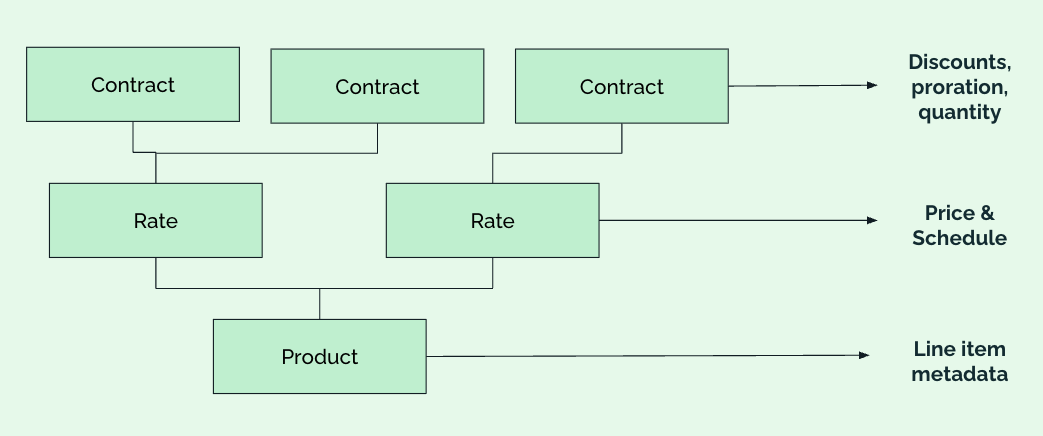
Learn how to work with the subscription data model to support your use cases.
 ### Products
The product is what ultimately drives the line item on the customer's invoice.
Create a subscription product for each type of subscription you offer. For example, if you offer a Good, Better, and Best plan, create a product for each. Think of products as similar to SKUs.
### Rates
Add a rate to the rate card for each standard price you offer. The price set on the rate card is the *price for a quantity of 1.*
A product can map to multiple rates. For example, consider a scenario where you sell your Good, Better, and Best subscriptions at different rates depending on whether your customer pays for it monthly, quarterly, or annually. To model this in Metronome, create 9 rates, with 3 rates per product, to represent the distinct prices for each billing frequency.
### Contracts
With contracts, you can encode different types of billing models in Metronome. When a customer purchases a subscription plan, create a contract for the customer and set `entitlement`to `true` for the corresponding subscription rate (for example, Good - Monthly).
Use the contract to set quantity, proration behavior, and collection behavior: in-advance or in-arrears.
Metronome doesn't distinguish between types of subscription, such as a recurring platform fee or a seat-based subscription. `quantity` defines how many subscriptions a customer has. Most commonly, this models how many seats a customer is entitled to.
## Create a subscription
To encode a subscription on a contract for a customer, create a subscription product, add it to a rate card, and provision a customer with the subscription.
### Create a subscription product
Create a subscription product in the [Metronome app](https://app.metronome.com/offering/products) or with the API using the [/v1/contract-pricing/products/create](/api-reference/products/create-a-product) endpoint.
### Add a subscription product to a rate card
Add your subscription product(s) to a rate card with the [Metronome app](https://app.metronome.com/offering/rate-cards) or the API.
When using the API to [add rates](/api-reference/rate-cards/add-a-rate) to a rate card:
1. Add your subscription to the rate card as a `flat` rate.
2. Specify a `price` and `billing_frequency`.
3. Specify an `entitlement` state. If you have more than one subscription rate on your rate card, Metronome recommends defaulting them to `false` and enabling them when provisioning a contract.
This call shows an example of using `rate-cards/addRate` to add subscription products to a rate card:
```json theme={null}
{
"entitled": false,
"product_id": "660445c5-e409-42dc-9aac-07df3b2cde35",
"rate_card_id": "a7bc3775-b651-46b6-b7e4-d225a7e55c4c",
"rate_type": "flat",
"starting_at": "2025-04-01T00:00:00.000Z",
"price": 500,
"billing_frequency": "MONTHLY"
}
```
### Provision a customer
To provision a customer with a subscription, ensure that you've added all relevant rates to your rate card. Then, [create a contract](/api-reference/contracts/create-a-contract).
**WARNING**
You must set the entitlement to `true` for the given rate AND provide a subscription config for Metronome to invoice for the subscription.
#### Perform an override on a subscription rate
To perform an override on a subscription rate, specify the `billing_frequency` and the `product_id` given that a single `product_id` may map to multiple rates.
If necessary, override the relevant subscription rate to `true` for Metronome to invoice for that rate.
If you want to issue a discount, include that using the override functionality.
#### Pass the subscription config
For each subscription on a contract, pass the `subscriptions` config on the create contract call. Specify:
* `subscription_rate`
Similar to overrides, specify which subscription rate on your rate card this config applies to using the `billing_frequency` and `product_id`.
* `collection_schedule`
Either `advance` or `arrears`.
* `initial_quantity`
The current quantity for the subscription. For seats, this is the initial seat count. For a platform license, this is likely just `1`.
* `proration`
Define whether to prorate for mid-period quantity changes and whether mid-period changes should invoice immediately or on the next billing cycle.
* *Optional fields*
Optionally set the start and end dates of the subscription if different from the contract. Add a name or description for the subscription. These appear on the subscription line item.
**TIP**
Metronome only supports prorating for upgrade motions, such as increasing quantity or adding a new subscription mid-period. For downgrade motions, such as decreasing quantity, the change takes effect at the start of the next billing period.
This call shows an example of using `/contracts/create` to create a new contract with a subscription:
```json theme={null}
{
"customer_id": "4c09936b-455d-4c72-a120-d71b600a7546",
"rate_card_id": "740a2ca1-64f6-417d-807a-05f154b3b1fe",
"starting_at": "2025-04-23T00:00:00.000Z",
"billing_provider_configuration": {
"billing_provider_configuration_id": "e045c62b-65e7-4e84-a924-3f06f8b621d0"
},
"overrides": [
{
"starting_at": "2025-04-01T00:00:00.000Z",
"override_specifiers": [
{
"billing_frequency": "annual",
"product_id": "ed518bcb-acc1-4cd8-85dd-880c2eb38994"
}
],
"entitled": true
}
],
"subscriptions": [
{
"collection_schedule": "advance",
"initial_quantity": 2,
"proration": {
"invoice_behavior": "bill_on_next_collection_date",
"is_prorated": true
},
"subscription_rate": {
"billing_frequency": "annual",
"product_id": "ed518bcb-acc1-4cd8-85dd-880c2eb38994"
},
"description": "pro plan no additions",
"name": "Pro Plan",
"custom_fields": {
"plan_tier": "pro"
}
}
]
}
```
## Manage a subscription
Use the Metronome API to manage your subscriptions.
### Update pricing
A core benefit of Metronome subscriptions is centralized management of pricing with the rate card. To change the price of a subscription, change the price of the associated subscription rate on the rate card. All contracts inherit the new pricing and customers are billed at the new rate at the start of the next billing period.
**INFO**
If you apply an overwrite override to the price of the subscription on the contract, the contract won't inherit changes made on the rate card. It keeps the price assigned on the overwrite.
### Add a subscription to an existing contract
Add a new subscription to an existing contract using the `add_subscription` action on the [edit contract endpoint](/api-reference/contracts/edit-a-contract). Make sure the `entitlement` for the relevant subscription rate is also set to `true`.
### Change seat count
Schedule a change of the quantity of a subscription using the `update_subscription` action on the [edit contract endpoint](/api-reference/contracts/edit-a-contract). Either pass the new total count through `quantity` or the difference between the previous count through `quantity_delta`. Updates scheduled with the same `starting_at` are applied in the order they are submitted in. Quantity changes are invoiced based on the proration settings in the subscription config on the contract.
This call shows an example of using `/contracts/edit` to change a subscription seat count:
```json theme={null}
{
"customer_id": "68cd7fb2-235a-4d4d-9ee3-15c49e866884",
"contract_id": "7f865c1b-1c08-40e8-9c09-b3238fd3b50d",
"update_subscriptions": [
{
"subscription_id": "2714e483-4ff1-48e4-9e25-ac732e8f24f2",
"quantity_updates": [
{
"quantity": 3,
"starting_at": "2025-04-29T00:00:00.000Z"
}
]
}
]
}
```
### Cancel a subscription
End a subscription in Metronome by either:
* Ending the contract by moving the contract end date to the time of cancellation using the [edit contract endpoint](/api-reference/contracts/edit-a-contract)
* Ending the subscription on the contract by moving the subscription end date to the time of cancellation using the [edit contract endpoint](/api-reference/contracts/edit-a-contract)
For most cancellations, Metronome recommends ending the contract. If the same customer restarts the subscription in the future, create a new contract at that point in time. This enables the Metronome contract to be the source of truth for whether a customer has an active plan for your product.
**WARNING**
Extending or removing a contract's end date does **not** automatically update the subscription end date if the most recent service period has already been finalized. For in-advance subscriptions, create a new subscription using the [EditContract](/api-reference/contracts/edit-a-contract) endpoint when extending the contract to ensure that the customer will have an active subscription in future service periods.
### Upgrade or downgrade a subscription
Metronome recommends facilitating upgrade and downgrade motions using contract transitions. This enables you to end the first subscription and start the second one with a single API call, while accurately handling proration. This also ensures that any usage is properly billed against the correct contract terms, which may vary between subscriptions you offer.
Facilitate a contract transition by using the [create contract endpoint](/api-reference/contracts/edit-a-contract) and specifying the `transition` object. Set `type` to `renewal`.
### Configure a free trial
Creating a free trial in Metronome follows the general pattern for discounts: apply a rate override on the customer’s contract. If you want to offer a free trial for a subscription you have two options, depending on the desired behavior:
* **If the trial period is less than a full billing cycle.**
* Create one subscription on the contract that starts on the start date of the contract and ends after the free trial period. Add an override to the subscription rate to change the price to \$0.
* Create a second subscription on the contract that starts after the first one ends.
* **If trial period is a full billing cycle.**
* Create one subscription on the contract that starts when the contract starts.
* Add an override for the trial period to change the rate to \$0 for that period. Once that period ends, the customer is automatically billed at the list rate on the rate card at the start of the next period.
**TIP**
In Metronome, subscriptions can only have one rate per billing period. This enables you to schedule price changes on the rate card without interrupting mid-cycle customers.
## Collect payment
Metronome automatically invoices the customer based on the billing configuration set on their contract.
For example, if your billing configuration is set to Stripe, Metronome sends each invoice on the contract based on your Stripe setup. To learn how to set up this integration, see [Invoice with Stripe](/integrations/invoice-integrations/stripe).
### Products
The product is what ultimately drives the line item on the customer's invoice.
Create a subscription product for each type of subscription you offer. For example, if you offer a Good, Better, and Best plan, create a product for each. Think of products as similar to SKUs.
### Rates
Add a rate to the rate card for each standard price you offer. The price set on the rate card is the *price for a quantity of 1.*
A product can map to multiple rates. For example, consider a scenario where you sell your Good, Better, and Best subscriptions at different rates depending on whether your customer pays for it monthly, quarterly, or annually. To model this in Metronome, create 9 rates, with 3 rates per product, to represent the distinct prices for each billing frequency.
### Contracts
With contracts, you can encode different types of billing models in Metronome. When a customer purchases a subscription plan, create a contract for the customer and set `entitlement`to `true` for the corresponding subscription rate (for example, Good - Monthly).
Use the contract to set quantity, proration behavior, and collection behavior: in-advance or in-arrears.
Metronome doesn't distinguish between types of subscription, such as a recurring platform fee or a seat-based subscription. `quantity` defines how many subscriptions a customer has. Most commonly, this models how many seats a customer is entitled to.
## Create a subscription
To encode a subscription on a contract for a customer, create a subscription product, add it to a rate card, and provision a customer with the subscription.
### Create a subscription product
Create a subscription product in the [Metronome app](https://app.metronome.com/offering/products) or with the API using the [/v1/contract-pricing/products/create](/api-reference/products/create-a-product) endpoint.
### Add a subscription product to a rate card
Add your subscription product(s) to a rate card with the [Metronome app](https://app.metronome.com/offering/rate-cards) or the API.
When using the API to [add rates](/api-reference/rate-cards/add-a-rate) to a rate card:
1. Add your subscription to the rate card as a `flat` rate.
2. Specify a `price` and `billing_frequency`.
3. Specify an `entitlement` state. If you have more than one subscription rate on your rate card, Metronome recommends defaulting them to `false` and enabling them when provisioning a contract.
This call shows an example of using `rate-cards/addRate` to add subscription products to a rate card:
```json theme={null}
{
"entitled": false,
"product_id": "660445c5-e409-42dc-9aac-07df3b2cde35",
"rate_card_id": "a7bc3775-b651-46b6-b7e4-d225a7e55c4c",
"rate_type": "flat",
"starting_at": "2025-04-01T00:00:00.000Z",
"price": 500,
"billing_frequency": "MONTHLY"
}
```
### Provision a customer
To provision a customer with a subscription, ensure that you've added all relevant rates to your rate card. Then, [create a contract](/api-reference/contracts/create-a-contract).
**WARNING**
You must set the entitlement to `true` for the given rate AND provide a subscription config for Metronome to invoice for the subscription.
#### Perform an override on a subscription rate
To perform an override on a subscription rate, specify the `billing_frequency` and the `product_id` given that a single `product_id` may map to multiple rates.
If necessary, override the relevant subscription rate to `true` for Metronome to invoice for that rate.
If you want to issue a discount, include that using the override functionality.
#### Pass the subscription config
For each subscription on a contract, pass the `subscriptions` config on the create contract call. Specify:
* `subscription_rate`
Similar to overrides, specify which subscription rate on your rate card this config applies to using the `billing_frequency` and `product_id`.
* `collection_schedule`
Either `advance` or `arrears`.
* `initial_quantity`
The current quantity for the subscription. For seats, this is the initial seat count. For a platform license, this is likely just `1`.
* `proration`
Define whether to prorate for mid-period quantity changes and whether mid-period changes should invoice immediately or on the next billing cycle.
* *Optional fields*
Optionally set the start and end dates of the subscription if different from the contract. Add a name or description for the subscription. These appear on the subscription line item.
**TIP**
Metronome only supports prorating for upgrade motions, such as increasing quantity or adding a new subscription mid-period. For downgrade motions, such as decreasing quantity, the change takes effect at the start of the next billing period.
This call shows an example of using `/contracts/create` to create a new contract with a subscription:
```json theme={null}
{
"customer_id": "4c09936b-455d-4c72-a120-d71b600a7546",
"rate_card_id": "740a2ca1-64f6-417d-807a-05f154b3b1fe",
"starting_at": "2025-04-23T00:00:00.000Z",
"billing_provider_configuration": {
"billing_provider_configuration_id": "e045c62b-65e7-4e84-a924-3f06f8b621d0"
},
"overrides": [
{
"starting_at": "2025-04-01T00:00:00.000Z",
"override_specifiers": [
{
"billing_frequency": "annual",
"product_id": "ed518bcb-acc1-4cd8-85dd-880c2eb38994"
}
],
"entitled": true
}
],
"subscriptions": [
{
"collection_schedule": "advance",
"initial_quantity": 2,
"proration": {
"invoice_behavior": "bill_on_next_collection_date",
"is_prorated": true
},
"subscription_rate": {
"billing_frequency": "annual",
"product_id": "ed518bcb-acc1-4cd8-85dd-880c2eb38994"
},
"description": "pro plan no additions",
"name": "Pro Plan",
"custom_fields": {
"plan_tier": "pro"
}
}
]
}
```
## Manage a subscription
Use the Metronome API to manage your subscriptions.
### Update pricing
A core benefit of Metronome subscriptions is centralized management of pricing with the rate card. To change the price of a subscription, change the price of the associated subscription rate on the rate card. All contracts inherit the new pricing and customers are billed at the new rate at the start of the next billing period.
**INFO**
If you apply an overwrite override to the price of the subscription on the contract, the contract won't inherit changes made on the rate card. It keeps the price assigned on the overwrite.
### Add a subscription to an existing contract
Add a new subscription to an existing contract using the `add_subscription` action on the [edit contract endpoint](/api-reference/contracts/edit-a-contract). Make sure the `entitlement` for the relevant subscription rate is also set to `true`.
### Change seat count
Schedule a change of the quantity of a subscription using the `update_subscription` action on the [edit contract endpoint](/api-reference/contracts/edit-a-contract). Either pass the new total count through `quantity` or the difference between the previous count through `quantity_delta`. Updates scheduled with the same `starting_at` are applied in the order they are submitted in. Quantity changes are invoiced based on the proration settings in the subscription config on the contract.
This call shows an example of using `/contracts/edit` to change a subscription seat count:
```json theme={null}
{
"customer_id": "68cd7fb2-235a-4d4d-9ee3-15c49e866884",
"contract_id": "7f865c1b-1c08-40e8-9c09-b3238fd3b50d",
"update_subscriptions": [
{
"subscription_id": "2714e483-4ff1-48e4-9e25-ac732e8f24f2",
"quantity_updates": [
{
"quantity": 3,
"starting_at": "2025-04-29T00:00:00.000Z"
}
]
}
]
}
```
### Cancel a subscription
End a subscription in Metronome by either:
* Ending the contract by moving the contract end date to the time of cancellation using the [edit contract endpoint](/api-reference/contracts/edit-a-contract)
* Ending the subscription on the contract by moving the subscription end date to the time of cancellation using the [edit contract endpoint](/api-reference/contracts/edit-a-contract)
For most cancellations, Metronome recommends ending the contract. If the same customer restarts the subscription in the future, create a new contract at that point in time. This enables the Metronome contract to be the source of truth for whether a customer has an active plan for your product.
**WARNING**
Extending or removing a contract's end date does **not** automatically update the subscription end date if the most recent service period has already been finalized. For in-advance subscriptions, create a new subscription using the [EditContract](/api-reference/contracts/edit-a-contract) endpoint when extending the contract to ensure that the customer will have an active subscription in future service periods.
### Upgrade or downgrade a subscription
Metronome recommends facilitating upgrade and downgrade motions using contract transitions. This enables you to end the first subscription and start the second one with a single API call, while accurately handling proration. This also ensures that any usage is properly billed against the correct contract terms, which may vary between subscriptions you offer.
Facilitate a contract transition by using the [create contract endpoint](/api-reference/contracts/edit-a-contract) and specifying the `transition` object. Set `type` to `renewal`.
### Configure a free trial
Creating a free trial in Metronome follows the general pattern for discounts: apply a rate override on the customer’s contract. If you want to offer a free trial for a subscription you have two options, depending on the desired behavior:
* **If the trial period is less than a full billing cycle.**
* Create one subscription on the contract that starts on the start date of the contract and ends after the free trial period. Add an override to the subscription rate to change the price to \$0.
* Create a second subscription on the contract that starts after the first one ends.
* **If trial period is a full billing cycle.**
* Create one subscription on the contract that starts when the contract starts.
* Add an override for the trial period to change the rate to \$0 for that period. Once that period ends, the customer is automatically billed at the list rate on the rate card at the start of the next period.
**TIP**
In Metronome, subscriptions can only have one rate per billing period. This enables you to schedule price changes on the rate card without interrupting mid-cycle customers.
## Collect payment
Metronome automatically invoices the customer based on the billing configuration set on their contract.
For example, if your billing configuration is set to Stripe, Metronome sends each invoice on the contract based on your Stripe setup. To learn how to set up this integration, see [Invoice with Stripe](/integrations/invoice-integrations/stripe).