> ## Documentation Index
> Fetch the complete documentation index at: https://docs.metronome.com/llms.txt
> Use this file to discover all available pages before exploring further.
# Let customers manage spend and usage
Transparency is crucial in usage-based pricing. Enabling customers to monitor and manage their usage in real time builds trust and encourages product adoption. Metronome provides the data and real-time control necessary to implement flexible and customizable billing functionality directly in your product. Using threshold notifications, you can give your customers the power to proactively manage spend limits, commit balances, and invoice totals.
Metronome evaluates threshold notifications as usage events are processed, triggering alarm states when a threshold is reached. The notifications are sent to your application through a preconfigured webhook, allowing you to take action as soon as the alarm state triggers as part of your entitlement management workflows. To learn more about supported notification types and behavior, see [Create and manage notifications](/guides/customers-billing/set-up-notifications/create-and-manage-notifications).
## Enable custom spend limits
Spend limits provide an important safety mechanism to reassure customers that their total costs won't exceed a predefined threshold. These limits trigger notifications and prevent further service usage in the case of a hard limit.
Implement spend limits with the following workflow:
1. An end user sets limits in your application (see example UI below)
2. Using the Metronome API, your application creates a `spend_threshold_reached` notification for each limit with a threshold matching the values entered by the end user
3. Metronome continuously evaluates the spend for the billing period, setting the notification to an `in_alarm` state once the threshold is reached
4. Metronome sends a notification to a webhook configured for your application that you can use to notify your customer and optionally block access to the service
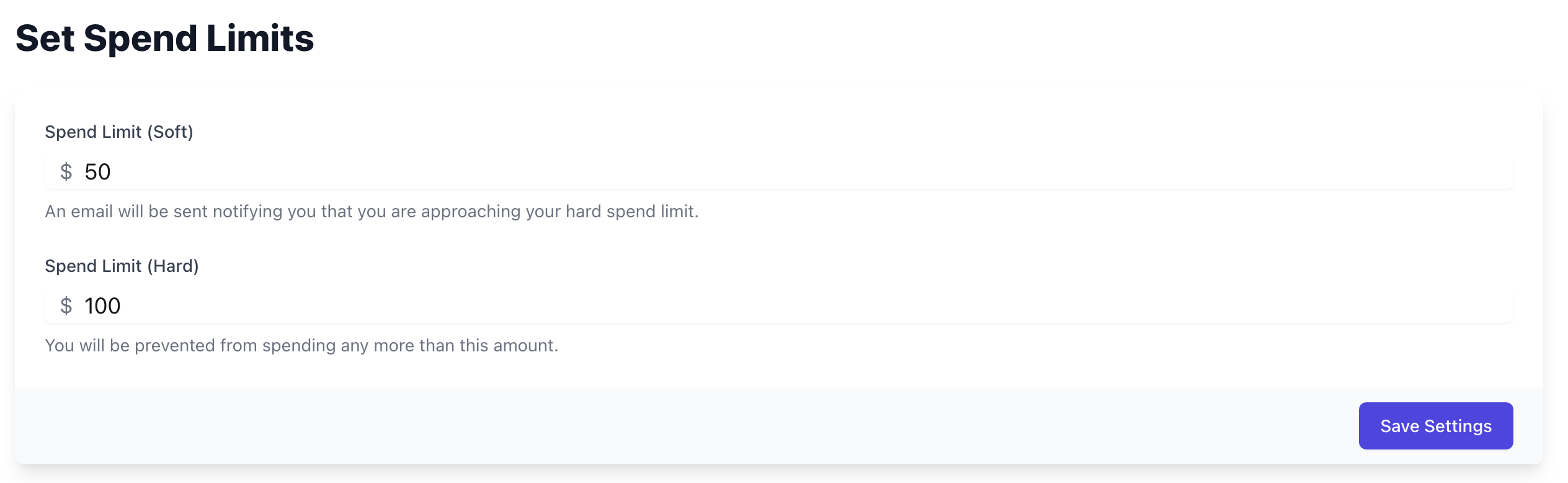 The following API calls show how to set notifications in Metronome based on a spend threshold, enabling you to support your end users’ ability to set soft and hard limits. Each response returns the ID of the created threshold notification. Save these to a table to make them easily available when a user wants to update their soft and hard spend limits.
```bash theme={null}
curl https://api.metronome.com/v1/alerts/create \
-H "Authorization: Bearer " \
-H "Content-Type: application/json" \
-d '{
"alert_type": "spend_threshold_reached",
"credit_type_id": "2714e483-4ff1-48e4-9e25-ac732e8f24f2",
"name": "SOFT spend threshold",
"threshold": 5000,
"customer_id": "75077603-26d4-45c0-a4b7-97b082ccc5f9"
}'
curl https://api.metronome.com/v1/alerts/create \
-H "Authorization: Bearer " \
-H "Content-Type: application/json" \
-d '{
"alert_type": "spend_threshold_reached",
"credit_type_id": "2714e483-4ff1-48e4-9e25-ac732e8f24f2",
"name": "HARD spend threshold",
"threshold": 10000,
"customer_id": "75077603-26d4-45c0-a4b7-97b082ccc5f9"
}'
```
**INFO**
The `credit_type_id` of `2714e483-4ff1-48e4-9e25-ac732e8f24f2` represents USD, where values are in **cents** (for example, a `threshold` of `10000` = \$100.00). Other supported currencies use whole units. See [currency denomination](/guides/pricing-packaging/make-pricing-changes/use-currency-custompricingunits#currency-denomination) for details. Spend notifications are not limited to USD — you can set them in custom pricing units, which you can define on the **Offering** page in the [Metronome app](https://app.metronome.com/offering/pricing-units/custom-pricing-units).
### Process notifications sent through a webhook
Taking action on notifications in real time requires the use of webhooks—dedicated endpoints in your application for receiving and processing notifications. Configure webhooks in Metronome in under [Connections - API tokens & webhooks](https://app.metronome.com/connections/api-tokens-webhooks).
When a notification triggers in Metronome, a POST request is sent to your webhook with basic information related to the notification, including the type, customer ID, and alert ID. Upon receiving a webhook notification, your application can process it and take the appropriate action. Learn more best practices around handling [webhook notifications](/guides/platform-configuration/setup-webhooks).
For the spend limit example above, processing the webhook payload might look like this:
1. Check that the alert ID matches a threshold notification you have configured and that the customer ID matches the one you associated with the alert ID.
2. Using information included in the webhook like alert ID, name, and threshold, determine whether the customer exceeded their soft limit, or their hard limit.
3. If the customer exceeded their soft limit, notify the customer inside the app, through email, or via your preferred delivery mechanism.
4. If the customer exceeded their hard limit, disable the customer’s access to your services to prevent any additional spend. Inform the customer they have reached their hard spend limit and prompt them to update their limits in your application if they’d like to continue using the service.
5. For any limits that have changed, archive the previous notifications before creating new notifications with the updated thresholds:
```bash theme={null}
curl https://api.metronome.com/v1/alerts/archive \
-H "Authorization: Bearer " \
-H "Content-Type: application/json" \
-d '{
"id": "e9c0d89d-040e-4ffc-91f6-001c6954d7a7"
}'
```
In addition to using webhook notifications, you can regularly check the status of customer notifications at any time that makes sense in the customer workflow, such as upon initial login. Do this with calls to the [/customer-alerts/get](/api-reference/alerts/get-an-alert) endpoint for a specific threshold notification, or the [/customer-alerts/list](/api-reference/alerts/list-customer-alerts) endpoint for all threshold notifications.
### Enable custom spend limits for a specific dimension
Your customers may want the flexibility to set up custom spend limits for a subset of usage. For example, they may want to receive a notification or limit access when a specific `user_id` has spent more than \$500 in a billing period, or when any `organization_id` has spent more than \$5000.
In Metronome, you have the option of adding `group_values` filters to spend threshold notifications to support this use case.
Create a notification on spend for `user_id` = `user_123` using the following API call:
```bash theme={null}
curl https://api.metronome.com/v1/alerts/create \
-d '{
"alert_type": "spend_threshold_reached",
"credit_type_id": "2714e483-4ff1-48e4-9e25-ac732e8f24f2",
"name": "$500 spend limit for user_123",
"threshold": 50000,
"customer_id": "5cceec38-51fe-4399-8bed-fcb2a8ad1fb7",
"group_values":[{"key":"user_id", "value":"user_123"}]
}'
```
Create a threshold notification on spend for any `organization_id` using the following API call. If any `organization_id` spends more than \$5000, you will receive a webhook notification, including which `organization_id` breached the threshold in the payload.
```bash theme={null}
curl https://api.metronome.com/v1/alerts/create \
-H "Authorization: Bearer " \
-H "Content-Type: application/json" \
-d '{
"alert_type": "spend_threshold_reached",
"credit_type_id": "2714e483-4ff1-48e4-9e25-ac732e8f24f2",
"name": "$5000 spend limit for any organization",
"threshold": 500000,
"customer_id": "5cceec38-51fe-4399-8bed-fcb2a8ad1fb7",
"group_values":[{"key":"organization_id"}]
}'
```
To retrieve an customer threshold notification for any `organization_id` (e.g. `finance`), use the [/customer-alerts/get](/api-reference/alerts/get-an-alert) endpoint.
```bash theme={null}
curl https://api.metronome.com/v1/customer-alerts/get \
-H "Authorization: Bearer " \
-H "Content-Type: application/json" \
-d '{
"customer_id": "5cceec38-51fe-4399-8bed-fcb2a8ad1fb7",
"alert_id": "e9c0d89d-040e-4ffc-91f6-001c6954d7a7"
"group_values": [{"key":"organization_id", "value":"finance"}]
}'
```
In order to use a key in the `group_values` field, make sure that key is added as a [group key](/guides/get-started/core-concepts/create-billable-metrics#3-define-group-keys) on billable metrics associated with that customer's contract. Spend on products where the key is not a group key on the underlying billable metrics will not contribute to the threshold.
When evaluating spend threshold notifications for a specific dimension, Metronome recomputes the invoice as if the group key is a presentation group key. In cases with tiered pricing, quantity rounding, or MAX billable metrics, the pricing and packaging will be applied to the subset of usage you define. For example, if you create a threshold notification for `organization_id` = `finance`, the quantity will be rounded for the subset of usage by the finance org.
INFO
For a given customer, you can set spend threshold notifications for three keys. For example, you can set spend threshold notifications for a `user_id`, a `project_id`, and an `organization_id`, but will be prevented from adding a notification using a fourth key. For keys with more than 5000 values for a given customer, contact your Metronome representative to discuss your spend threshold notification configuration.
## Monitor commit balance
Another useful scenario for flexible notification management is helping customers monitor the balance related to a contractually established spend commit. This example assumes you have set up products, rates, contracts, and commits in Metronome and want to allow a customer to specify a commitment balance at which they want to receive a notification. See the following call below:
```bash theme={null}
curl https://api.metronome.com/v1/alerts/create \
-H "Authorization: Bearer " \
-H "Content-Type: application/json" \
-d '{
"alert_type": "low_remaining_commit_balance_reached",
"credit_type_id": "2714e483-4ff1-48e4-9e25-ac732e8f24f2",
"name": "Commitment Balance Alert",
"threshold": 500,
"customer_id": "5cceec38-51fe-4399-8bed-fcb2a8ad1fb7"
}'
```
This gives you an opportunity to notify your customer that they’re reaching the end of their commit, or even send a message to your sales team to contact this customer for a potential renegotiation. It also provides a trigger for cutting off access if appropriate when the commit balance reaches zero.
## Enable custom invoice total limits
The [spend threshold reached](/guides/customers-billing/set-up-notifications/create-and-manage-notifications#spend-alerts) notification described above uses a customer's usage-based spend prior to credit and commit drawdown. You can also set notifications on invoice total. The invoice total is evaluated after credit and commit drawdown and corresponds to the amount a customer will pay. To allow a customer to specify an invoice total reached threshold notification on usage invoices, see the following call:
```bash theme={null}
curl https://api.metronome.com/v1/alerts/create \
-H "Authorization: Bearer bb842ce6470ef5fc9982b861b53c0b7c3c111ac34b7980b38b70c095e77de2c4" \
-H "Content-Type: application/json" \
-d '{
"alert_type": "invoice_total_reached",
"credit_type_id": "2714e483-4ff1-48e4-9e25-ac732e8f24f2",
"name": "$100 usage invoice total reached alert",
"threshold": 10000,
"customer_id": "5cceec38-51fe-4399-8bed-fcb2a8ad1fb7",
"invoice_types_filter": ["USAGE"]
}'
```
The following API calls show how to set notifications in Metronome based on a spend threshold, enabling you to support your end users’ ability to set soft and hard limits. Each response returns the ID of the created threshold notification. Save these to a table to make them easily available when a user wants to update their soft and hard spend limits.
```bash theme={null}
curl https://api.metronome.com/v1/alerts/create \
-H "Authorization: Bearer " \
-H "Content-Type: application/json" \
-d '{
"alert_type": "spend_threshold_reached",
"credit_type_id": "2714e483-4ff1-48e4-9e25-ac732e8f24f2",
"name": "SOFT spend threshold",
"threshold": 5000,
"customer_id": "75077603-26d4-45c0-a4b7-97b082ccc5f9"
}'
curl https://api.metronome.com/v1/alerts/create \
-H "Authorization: Bearer " \
-H "Content-Type: application/json" \
-d '{
"alert_type": "spend_threshold_reached",
"credit_type_id": "2714e483-4ff1-48e4-9e25-ac732e8f24f2",
"name": "HARD spend threshold",
"threshold": 10000,
"customer_id": "75077603-26d4-45c0-a4b7-97b082ccc5f9"
}'
```
**INFO**
The `credit_type_id` of `2714e483-4ff1-48e4-9e25-ac732e8f24f2` represents USD, where values are in **cents** (for example, a `threshold` of `10000` = \$100.00). Other supported currencies use whole units. See [currency denomination](/guides/pricing-packaging/make-pricing-changes/use-currency-custompricingunits#currency-denomination) for details. Spend notifications are not limited to USD — you can set them in custom pricing units, which you can define on the **Offering** page in the [Metronome app](https://app.metronome.com/offering/pricing-units/custom-pricing-units).
### Process notifications sent through a webhook
Taking action on notifications in real time requires the use of webhooks—dedicated endpoints in your application for receiving and processing notifications. Configure webhooks in Metronome in under [Connections - API tokens & webhooks](https://app.metronome.com/connections/api-tokens-webhooks).
When a notification triggers in Metronome, a POST request is sent to your webhook with basic information related to the notification, including the type, customer ID, and alert ID. Upon receiving a webhook notification, your application can process it and take the appropriate action. Learn more best practices around handling [webhook notifications](/guides/platform-configuration/setup-webhooks).
For the spend limit example above, processing the webhook payload might look like this:
1. Check that the alert ID matches a threshold notification you have configured and that the customer ID matches the one you associated with the alert ID.
2. Using information included in the webhook like alert ID, name, and threshold, determine whether the customer exceeded their soft limit, or their hard limit.
3. If the customer exceeded their soft limit, notify the customer inside the app, through email, or via your preferred delivery mechanism.
4. If the customer exceeded their hard limit, disable the customer’s access to your services to prevent any additional spend. Inform the customer they have reached their hard spend limit and prompt them to update their limits in your application if they’d like to continue using the service.
5. For any limits that have changed, archive the previous notifications before creating new notifications with the updated thresholds:
```bash theme={null}
curl https://api.metronome.com/v1/alerts/archive \
-H "Authorization: Bearer " \
-H "Content-Type: application/json" \
-d '{
"id": "e9c0d89d-040e-4ffc-91f6-001c6954d7a7"
}'
```
In addition to using webhook notifications, you can regularly check the status of customer notifications at any time that makes sense in the customer workflow, such as upon initial login. Do this with calls to the [/customer-alerts/get](/api-reference/alerts/get-an-alert) endpoint for a specific threshold notification, or the [/customer-alerts/list](/api-reference/alerts/list-customer-alerts) endpoint for all threshold notifications.
### Enable custom spend limits for a specific dimension
Your customers may want the flexibility to set up custom spend limits for a subset of usage. For example, they may want to receive a notification or limit access when a specific `user_id` has spent more than \$500 in a billing period, or when any `organization_id` has spent more than \$5000.
In Metronome, you have the option of adding `group_values` filters to spend threshold notifications to support this use case.
Create a notification on spend for `user_id` = `user_123` using the following API call:
```bash theme={null}
curl https://api.metronome.com/v1/alerts/create \
-d '{
"alert_type": "spend_threshold_reached",
"credit_type_id": "2714e483-4ff1-48e4-9e25-ac732e8f24f2",
"name": "$500 spend limit for user_123",
"threshold": 50000,
"customer_id": "5cceec38-51fe-4399-8bed-fcb2a8ad1fb7",
"group_values":[{"key":"user_id", "value":"user_123"}]
}'
```
Create a threshold notification on spend for any `organization_id` using the following API call. If any `organization_id` spends more than \$5000, you will receive a webhook notification, including which `organization_id` breached the threshold in the payload.
```bash theme={null}
curl https://api.metronome.com/v1/alerts/create \
-H "Authorization: Bearer " \
-H "Content-Type: application/json" \
-d '{
"alert_type": "spend_threshold_reached",
"credit_type_id": "2714e483-4ff1-48e4-9e25-ac732e8f24f2",
"name": "$5000 spend limit for any organization",
"threshold": 500000,
"customer_id": "5cceec38-51fe-4399-8bed-fcb2a8ad1fb7",
"group_values":[{"key":"organization_id"}]
}'
```
To retrieve an customer threshold notification for any `organization_id` (e.g. `finance`), use the [/customer-alerts/get](/api-reference/alerts/get-an-alert) endpoint.
```bash theme={null}
curl https://api.metronome.com/v1/customer-alerts/get \
-H "Authorization: Bearer " \
-H "Content-Type: application/json" \
-d '{
"customer_id": "5cceec38-51fe-4399-8bed-fcb2a8ad1fb7",
"alert_id": "e9c0d89d-040e-4ffc-91f6-001c6954d7a7"
"group_values": [{"key":"organization_id", "value":"finance"}]
}'
```
In order to use a key in the `group_values` field, make sure that key is added as a [group key](/guides/get-started/core-concepts/create-billable-metrics#3-define-group-keys) on billable metrics associated with that customer's contract. Spend on products where the key is not a group key on the underlying billable metrics will not contribute to the threshold.
When evaluating spend threshold notifications for a specific dimension, Metronome recomputes the invoice as if the group key is a presentation group key. In cases with tiered pricing, quantity rounding, or MAX billable metrics, the pricing and packaging will be applied to the subset of usage you define. For example, if you create a threshold notification for `organization_id` = `finance`, the quantity will be rounded for the subset of usage by the finance org.
INFO
For a given customer, you can set spend threshold notifications for three keys. For example, you can set spend threshold notifications for a `user_id`, a `project_id`, and an `organization_id`, but will be prevented from adding a notification using a fourth key. For keys with more than 5000 values for a given customer, contact your Metronome representative to discuss your spend threshold notification configuration.
## Monitor commit balance
Another useful scenario for flexible notification management is helping customers monitor the balance related to a contractually established spend commit. This example assumes you have set up products, rates, contracts, and commits in Metronome and want to allow a customer to specify a commitment balance at which they want to receive a notification. See the following call below:
```bash theme={null}
curl https://api.metronome.com/v1/alerts/create \
-H "Authorization: Bearer " \
-H "Content-Type: application/json" \
-d '{
"alert_type": "low_remaining_commit_balance_reached",
"credit_type_id": "2714e483-4ff1-48e4-9e25-ac732e8f24f2",
"name": "Commitment Balance Alert",
"threshold": 500,
"customer_id": "5cceec38-51fe-4399-8bed-fcb2a8ad1fb7"
}'
```
This gives you an opportunity to notify your customer that they’re reaching the end of their commit, or even send a message to your sales team to contact this customer for a potential renegotiation. It also provides a trigger for cutting off access if appropriate when the commit balance reaches zero.
## Enable custom invoice total limits
The [spend threshold reached](/guides/customers-billing/set-up-notifications/create-and-manage-notifications#spend-alerts) notification described above uses a customer's usage-based spend prior to credit and commit drawdown. You can also set notifications on invoice total. The invoice total is evaluated after credit and commit drawdown and corresponds to the amount a customer will pay. To allow a customer to specify an invoice total reached threshold notification on usage invoices, see the following call:
```bash theme={null}
curl https://api.metronome.com/v1/alerts/create \
-H "Authorization: Bearer bb842ce6470ef5fc9982b861b53c0b7c3c111ac34b7980b38b70c095e77de2c4" \
-H "Content-Type: application/json" \
-d '{
"alert_type": "invoice_total_reached",
"credit_type_id": "2714e483-4ff1-48e4-9e25-ac732e8f24f2",
"name": "$100 usage invoice total reached alert",
"threshold": 10000,
"customer_id": "5cceec38-51fe-4399-8bed-fcb2a8ad1fb7",
"invoice_types_filter": ["USAGE"]
}'
```