> ## Documentation Index
> Fetch the complete documentation index at: https://docs.metronome.com/llms.txt
> Use this file to discover all available pages before exploring further.
# Use Postman with Metronome
[Postman](https://www.postman.com/) is a great way to visually explore the Metronome API without writing code. Before you start, you need to:
* Create a [free account with Postman](https://postman.com/)
* Request a [Metronome account](https://metronome.com/talk-to-an-expert)
* Generate a Metronome [API token](/api-reference/authorization)
## Use the OpenAPI spec
The [Metronome OpenAPI spec](https://api.metronome.com/v1/docs/openapi) can be [imported directly into Postman](https://learning.postman.com/docs/integrations/available-integrations/working-with-openAPI/). The spec is always up to date. To import the OpenAPI spec:
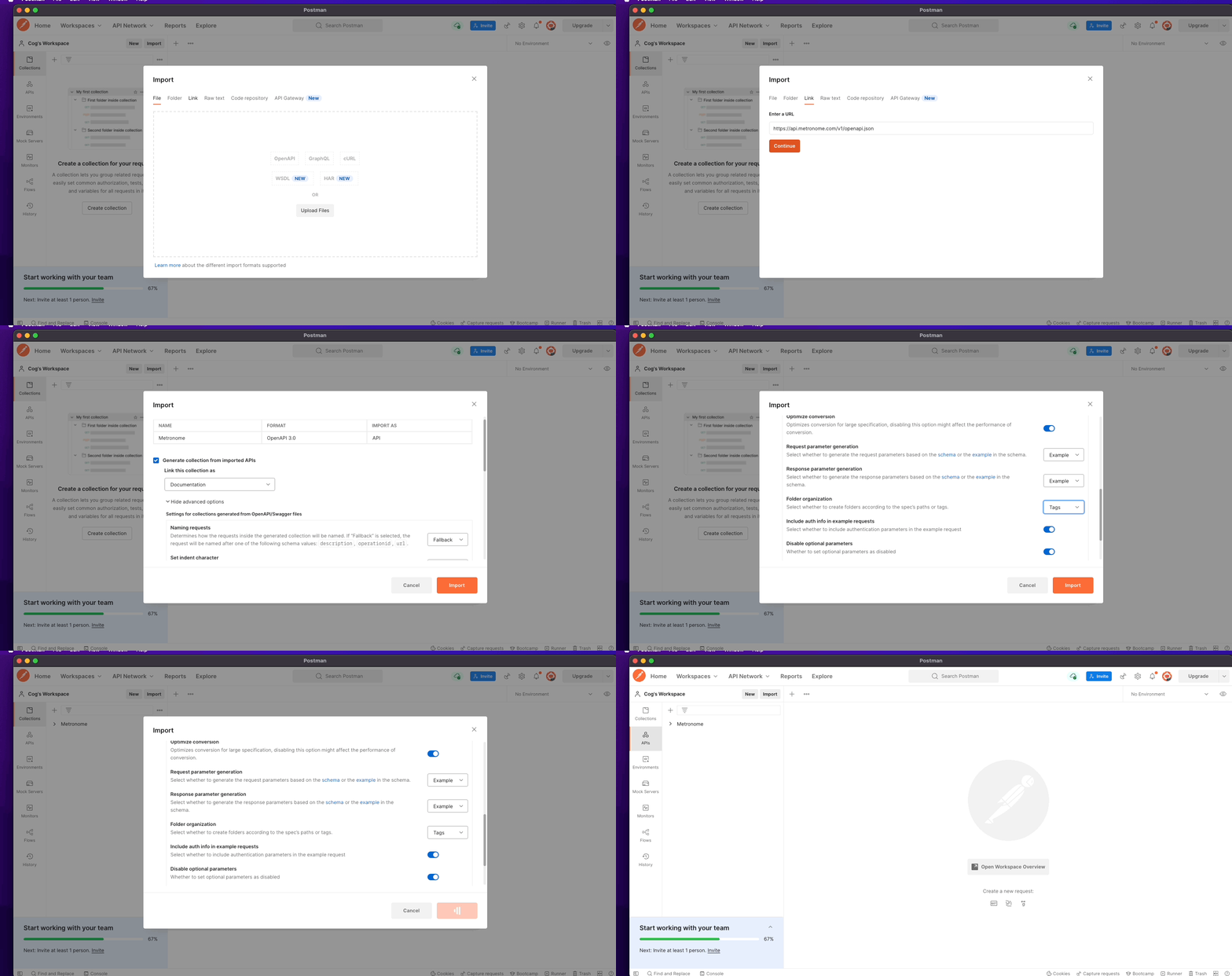
1. In Postman, go to **File** > **Import**.
2. Select **Link** from the top menu, and enter Metronome's OpenAPI spec link ([https://api.metronome.com/v1/docs/openapi](https://api.metronome.com/v1/docs/openapi)).
3. On the next pane, select **Show advanced settings** and make sure the **Folder organization** is set as **Tags**.
 ### Set up authorization for the Metronome collection
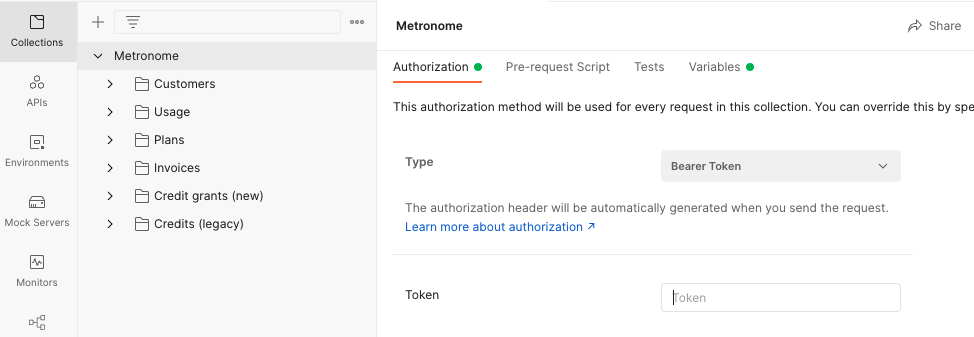
The Metronome API uses a Bearer Token. To set Auth up in the collection, click on your collection's top-level **Metronome** folder and select **Bearer Token**.
### Set up authorization for the Metronome collection
The Metronome API uses a Bearer Token. To set Auth up in the collection, click on your collection's top-level **Metronome** folder and select **Bearer Token**.
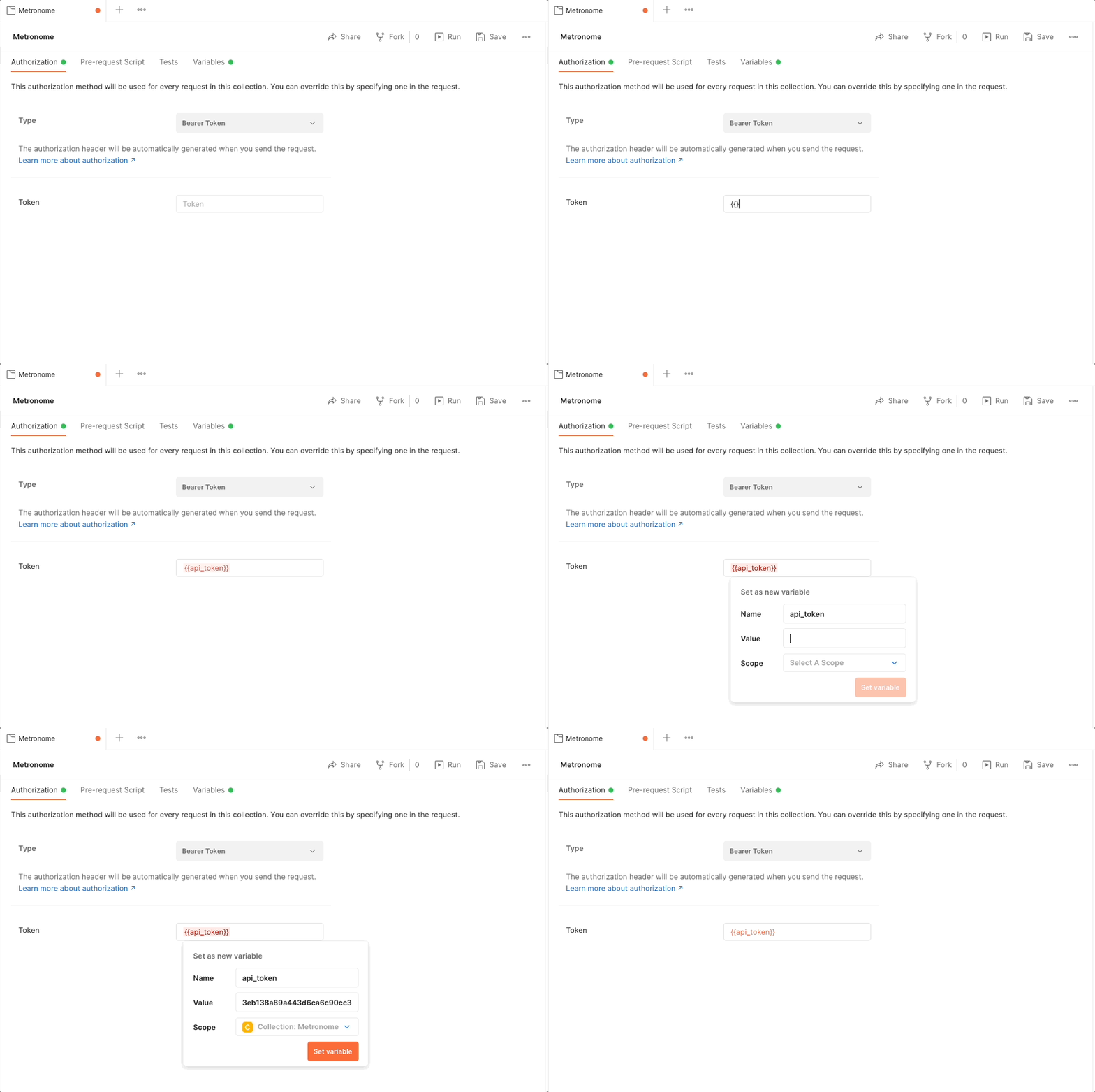
 We recommend using a [Postman variable](https://learning.postman.com/docs/sending-requests/variables/) for the token value. To do this, enter `{{api_token}}` in the box below the **Type** dropdown. A window appears referencing an unresolved variable. In that box, click on **Add new variable** , add your Metronome API token as the value, and set the scope to **Collection: Metronome**.
 ### Organize the Metronome collection
A [Postman Collection](https://www.postman.com/collection/) groups requests together in a folder structure, allowing them to be easily organized. You can [fork](https://learning.postman.com/docs/collaborating-in-postman/version-control-for-collections/) the collection if needed. Forking provides for version control and facilitates collaboration.
## Try it out
To test the Metronome API using Postman, create a new customer using the **Create customer** request. To do so you must configure the **Create customer** request to use the Bearer Token variable `{{api_token}}`.
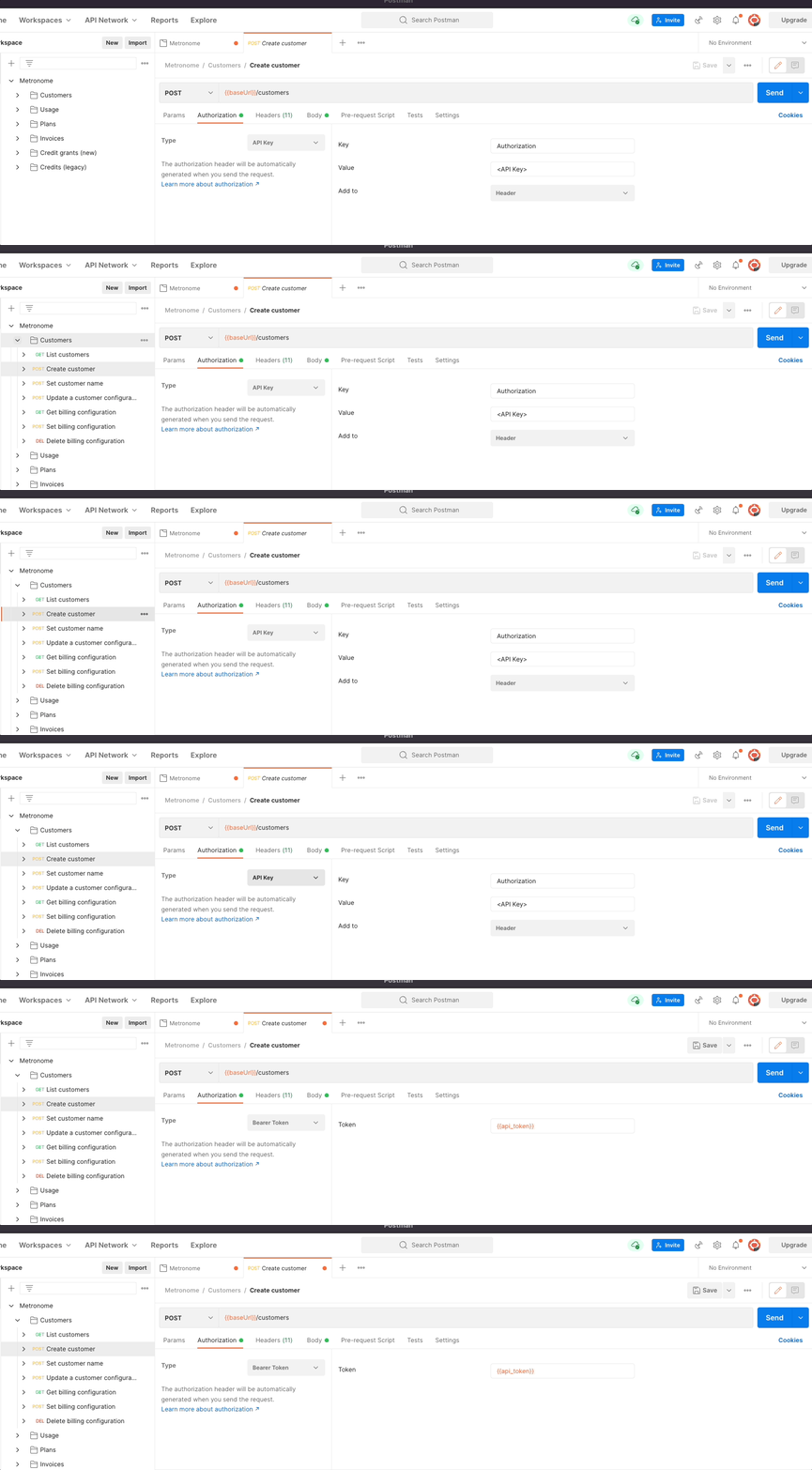
1. Navigate to **Customers** > **POST Create customer**.
2. Select **Authorization** , then select **Bearer Token** from the **Type** dropdown. Since we scoped `{{api_token}}` for the entire collection, the **Token** value should automatically be set to `{{api_token}}`. If not, just enter `{{api_token}}` in the **Token** box.
3. Save your changes to the **Create customer** request.
### Organize the Metronome collection
A [Postman Collection](https://www.postman.com/collection/) groups requests together in a folder structure, allowing them to be easily organized. You can [fork](https://learning.postman.com/docs/collaborating-in-postman/version-control-for-collections/) the collection if needed. Forking provides for version control and facilitates collaboration.
## Try it out
To test the Metronome API using Postman, create a new customer using the **Create customer** request. To do so you must configure the **Create customer** request to use the Bearer Token variable `{{api_token}}`.
1. Navigate to **Customers** > **POST Create customer**.
2. Select **Authorization** , then select **Bearer Token** from the **Type** dropdown. Since we scoped `{{api_token}}` for the entire collection, the **Token** value should automatically be set to `{{api_token}}`. If not, just enter `{{api_token}}` in the **Token** box.
3. Save your changes to the **Create customer** request.
 Now that auth is set, create a new customer using the below JSON as the body of the request. Navigate to **Customers** > **POST Create customer** , select **Body** from the request options in the panel, then enter the following:
```json theme={null}
{
"name": "Example-Customer"
}
```
The API response is in the format
```json theme={null}
{
"data": {
"id": "d7abd0cd-4ae9-4db7-8676-e986a4ebd8dc",
"external_id": "d7abd0cd-4ae9-4db7-8676-e986a4ebd8dc",
"name": "Example-Customer"
}
}
```
Now that the collection is set up, you can continue with the Metronome API.
Now that auth is set, create a new customer using the below JSON as the body of the request. Navigate to **Customers** > **POST Create customer** , select **Body** from the request options in the panel, then enter the following:
```json theme={null}
{
"name": "Example-Customer"
}
```
The API response is in the format
```json theme={null}
{
"data": {
"id": "d7abd0cd-4ae9-4db7-8676-e986a4ebd8dc",
"external_id": "d7abd0cd-4ae9-4db7-8676-e986a4ebd8dc",
"name": "Example-Customer"
}
}
```
Now that the collection is set up, you can continue with the Metronome API.